
Fix Chrome Redirect Loops Without Clearing Login Cache
Chrome kept sending me to the wrong URL, yet the page loaded fine in Incognito. Here is the four-step DevTools fix that solved it without signing me out of a single account.
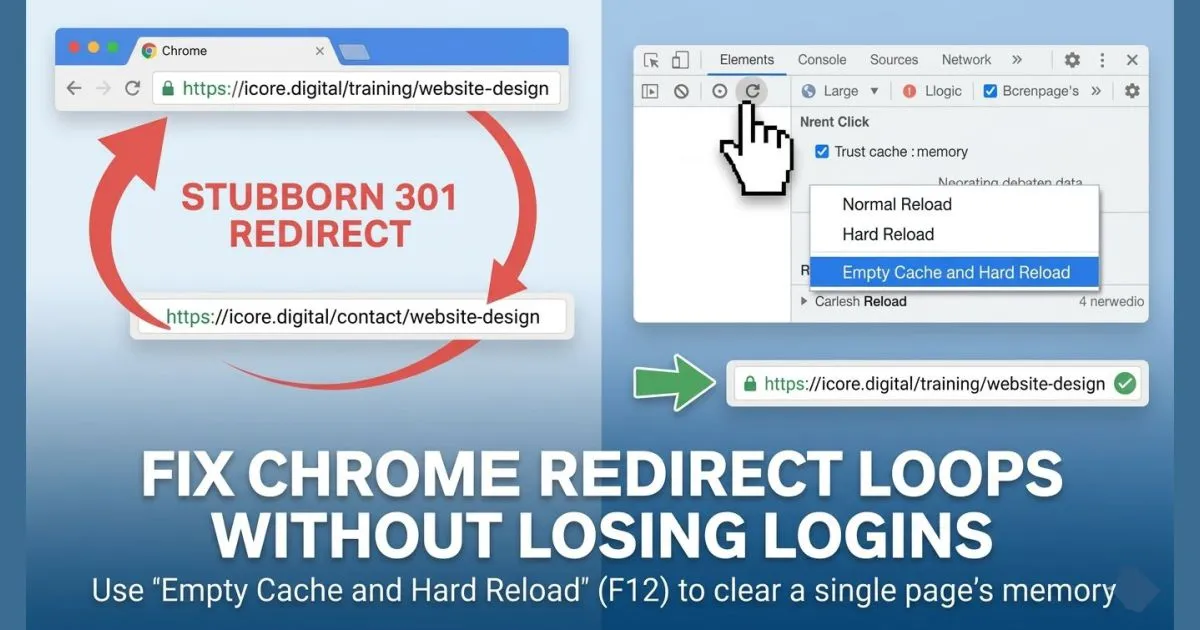
Quick fix: open the problem URL in Chrome, press F12, right-click the refresh button and choose Empty Cache and Hard Reload. Your logins stay signed in.
The problem: Chrome sends you to the wrong page
I ran into a frustrating tech loop today that reminded me why I love finding elegant solutions. 💻
I was trying to open a webpage, but Chrome kept redirecting me to the wrong URL. The odd part: the same address worked perfectly in Incognito and in other browsers.
That combination is a clue. If a page loads correctly in a private window and in another browser, the website itself is fine. The problem is something Chrome has stored on your computer.
The usual advice is to clear your browsing data. But depending on what you tick, that can sign you out of Gmail, Google Workspace and every other account you are logged in to. That is a high price for one misbehaving link.
Why Chrome keeps taking the wrong turn
Chrome is very aggressive at caching 301 redirects. A 301 status code tells the browser that a page has moved permanently, so the browser stores that instruction and skips asking the server next time. It is a great speed boost.
The catch is that if the redirect was wrong, Chrome remembers the wrong turn and keeps taking it. A misconfigured rule, a test that went live, or an old domain setup can all leave a bad redirect behind. Incognito and other browsers start with no memory of it, which is why they load the page correctly.
How to fix it: Empty Cache and Hard Reload
This is a small developer trick that clears the cached copy without touching your cookies, so your active logins are left alone.
- Paste the URL Paste the address that keeps redirecting into a Chrome tab.
- Press F12 to open Developer Tools On Mac, press Cmd + Option + I instead. The option in step 4 only appears while DevTools is open, so do not skip this step.
- Right-click Chrome's refresh button It sits to the left of the address bar. With DevTools open, right-clicking it shows a hidden menu.
- Select "Empty Cache and Hard Reload" Chrome discards the cached copy and fetches the page fresh. If you are still on the wrong page afterwards, enter the original address again.
It fixed my problem instantly, and I stayed logged in to everything.
Prefer to use Chrome settings?
You can get a similar result from Chrome's clear browsing data screen. Open Settings → Privacy and security → Delete browsing data, tick only Cached images and files, and leave Cookies and other site data unticked. This clears the cache for all sites, so pages may load a little slower the first time you revisit them.
Redirect problems on your own website?
Broken or looping redirects can lock visitors and search engines out of your pages. Tell us what you are seeing and our team will take a look.
Get Your Free Website Consultation
Fill out the form below. Our expert engineering team will contact you within 24 hours.
Tips for developers and site owners
- Test with a 302 first. A 302 is a temporary redirect and browsers do not hold on to it the way they do a 301. Switch to a 301 once you are sure the destination is right.
- Check Incognito or another browser. If the page works there, the server is fine and the culprit is a local cache.
- Tick "Disable cache" while debugging. In the DevTools Network tab, this stops Chrome reusing cached responses for as long as DevTools stays open.
The takeaway
If you are building websites, or just browsing them, keep this shortcut in your back pocket. It saves so much time.