
You have built your website.
Your pages are live. Your services are listed. Your content is ready.
But there is still one important question: Can Google find your website and its important pages?
This is where Google Search Console and your XML sitemap become useful.
Google Search Console is a free tool from Google. It helps you see how your website performs in Google Search. It also helps you check indexing problems, inspect URLs, and submit your sitemap.
In this guide, you will learn how to submit a sitemap to Google Search Console and what to do after you submit it.
What Is an XML Sitemap?
An XML sitemap is a file that lists important URLs on your website.
It gives search engines a clearer view of the pages you want them to discover and crawl.
For example, your website may have:
- A home page
- Service pages
- About and contact pages
- Blog posts
- Product or location pages
Your sitemap can help Google discover these URLs.
Think of a sitemap as a roadmap for search engines. It helps Google understand where important pages are located.
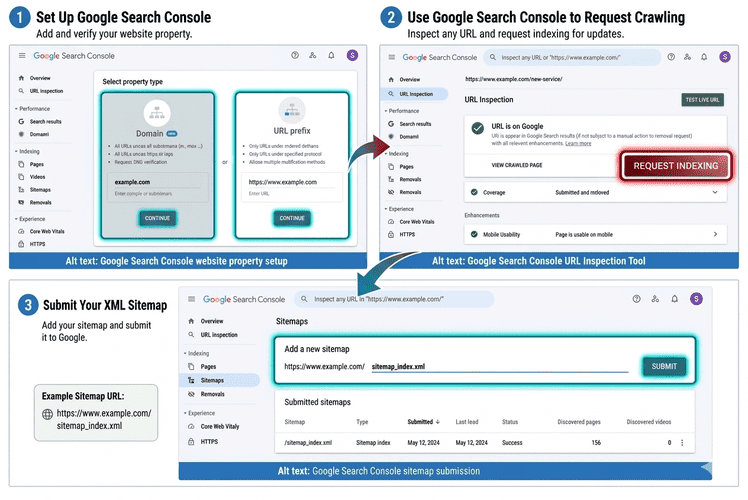
Step 1: Set Up Google Search Console
Before you can submit a sitemap, you need to add your website to Google Search Console.
Start by opening Google Search Console and signing in with the Google account you want to use to manage your website.
Then:
- Click Add Property.
- Enter your website domain or URL.
- Follow Google's instructions to verify ownership.
- Wait for the verification to complete.
For example, your website may use an address such as:
https://yourdomain.com
Once your website is verified, Google Search Console can start showing data about your site.
Step 2: Find Your Sitemap
Before submitting anything, you need to know where your sitemap is.
If your website runs on WordPress, your SEO plugin may create the sitemap automatically.
For example, websites using Yoast SEO often have a sitemap index at:
https://yourdomain.com/sitemap_index.xml
Other websites may use a different sitemap address, such as:
https://yourdomain.com/sitemap.xml
Do not guess your sitemap URL. Open it in your browser first.
If it loads correctly and shows your site's sitemap information, you can use that URL in Google Search Console.
Step 3: Submit Your Sitemap to Google
Now you are ready to submit your sitemap.
Inside Google Search Console:
- Select your website property.
- Look at the menu on the left.
- Click Sitemaps.
- Find the Add a new sitemap field.
- Enter your sitemap path.
- Click Submit.
If your sitemap is:
https://yourdomain.com/sitemap_index.xml
You will normally enter:
sitemap_index.xml
Google will then try to fetch and process the sitemap.
Step 4: Check Your Sitemap Status
Submitting the sitemap is not the end of the process.
Go back to the Sitemaps section and check the status of your submission.
You may see a status such as:
- Success
- Couldn't fetch
- Another status showing a processing or error state
A Success status means Google was able to fetch the sitemap.
That is good. But there is an important point to understand.
A successful sitemap submission does not mean every page on your website will be indexed.
The sitemap helps Google discover and crawl your URLs. Google still decides which pages to index and show in search based on many signals.
What If Google Says "Couldn't Fetch"?
Do not panic if Google cannot fetch your sitemap.
Start with the basics:
- Check that the sitemap URL is correct.
- Open the sitemap URL in your browser.
- Check that your website is online.
- Review the sitemap for errors.
- Check your robots.txt file.
- Check for server or access problems.
- Check redirects and other technical issues.
After fixing the problem, submit the sitemap again.
Step 5: Use URL Inspection for Important Pages
Your sitemap is useful for many URLs. But what if you just published an important page?
You can use the URL Inspection Tool in Google Search Console.
Here is how:
- Open Google Search Console.
- Find the Inspect any URL search box.
- Paste the full URL of the page.
- Press Enter.
- Review the information Google provides.
- If the page is eligible, select Request Indexing.
This can be useful after publishing or making major changes to an important page.
However, Request Indexing is not a guarantee that Google will index the page immediately.
Google decides when and whether a page is indexed.
Do You Need to Submit Your Sitemap Again?
Usually, you do not need to submit your sitemap every time you publish a new page.
Many websites have sitemaps that update automatically as pages are added or changed.
This is common with modern SEO tools and content management systems such as WordPress.
Once Google knows your sitemap, it can return to it and process updates.
The important thing is to make sure the sitemap remains accessible and correctly maintained.
A Sitemap Does Not Guarantee Google Rankings
This is one of the most important things to understand.
Submitting a sitemap does not automatically move your website to the first page of Google.
It also does not guarantee that every URL in your sitemap will appear in search results.
A sitemap is mainly a discovery and crawling aid.
Your website still needs strong content, good technical structure, useful pages, fast performance, mobile-friendly design, and content that matches what people search for.
Think of your sitemap as giving Google a roadmap. It does not force Google to visit every destination on the map.
What Should You Monitor in Google Search Console?
Google Search Console is more than a place to submit your sitemap.
Once your website is connected, check the Performance report regularly.
You can see useful information such as:
- Clicks: How many people clicked your website from Google.
- Impressions: How many times your pages appeared in search results.
- Queries: The searches that helped people find your pages.
- Average position: The average search position shown in the report.
This data can help you understand what is working and where your SEO needs more attention.
Why Google Search Console Matters for Your Business
If your website is important to your business, you should know how Google sees it.
Search Console can help you find problems before they become bigger issues.
It can help you answer questions like:
- Is Google finding my website?
- Which pages are appearing in search?
- What are people searching for?
- Are my pages getting clicks?
- Are there indexing problems?
- Is my sitemap working?
These answers can guide your next SEO decisions.
Google Search Console Sitemap Checklist
Before you finish, use this quick checklist:
- Create your Google Search Console property.
- Verify that you own or manage the website.
- Find your XML sitemap.
- Open the sitemap URL in your browser.
- Submit the sitemap through Google Search Console.
- Check the sitemap status.
- Fix any reported errors.
- Use URL Inspection for important updated pages.
- Monitor clicks, impressions, queries, and position.
- Keep improving your website's technical SEO and content.
The Bigger Picture
Submitting your sitemap is an important technical SEO step.
But it is only one part of getting found on Google.
Your website also needs useful content, a clear structure, good performance, mobile-friendly pages, and information that matches what your customers are searching for.
The goal is not simply to get Google to find your website.
The goal is to build a website worth finding.
If your business website is not getting the visibility you expect, the problem may go beyond your sitemap. Technical SEO, content, site structure, and search strategy all play a role.
At iCore Digital, we help businesses build high-performance websites and improve their SEO and Google visibility.
Start with the basics. Connect your website to Google Search Console. Submit your sitemap. Check your data. Then keep improving.
Give Google a clearer roadmap to your website — and give your customers a better reason to find you.